Time Tracking in Your AI Assistant: the time cockpit MCP Server
Ask Claude, ChatGPT, Copilot, Cursor or Codex about project budgets, open timesheets and utilization. time cockpit has no chat of its own; you work in the assistant you already use.
The time cockpit MCP server connects time tracking with AI assistants: it exposes projects, clients, tasks, timesheets, absences and lists through the Model Context Protocol. It runs at https://mcp.timecockpit.com; users sign in with their Microsoft Entra ID account, and their time cockpit permissions apply. The assistant executes changes only after confirmation. The MCP server is included in every plan.
Answers where you already work
Instead of building a report for every question, ask the question in your AI tool. The assistant fetches the data from time cockpit and summarizes it.
What the assistant can do with time cockpit
- Query projects, clients, tasks and timesheets, including custom fields of your data model
- Summarize budgets, utilization and billing status and point out anomalies
- List missing, duplicate or overlapping entries for review
- Run saved lists from time cockpit and formulate TCQL queries
- Create timesheets, absences or projects, after your confirmation
The assistant works with the same data model as your team in the web client, including any customizations you have made to time cockpit.
Which AI tools you can use
- Claude: Claude Code, the Claude app, claude.ai and Cowork
- OpenAI: Codex (CLI, app, IDE) and ChatGPT in Business, Enterprise and Edu workspaces
- Microsoft: Visual Studio Code in Copilot agent mode, Microsoft 365 Copilot through Copilot Studio
- Cursor: editor and CLI
- Any other client that supports remote MCP servers with OAuth
You decide which provider processes your data. time cockpit does not tie you to a chat window or an AI vendor. The documentation describes the setup for each client.
time cockpit MCP server at a glance
- Remote server at https://mcp.timecockpit.com, nothing to install
- Sign-in with Microsoft Entra ID, your time cockpit permissions apply
- Changes only after your confirmation, read-only mode available
- Included in every plan, also during the trial
- Price
- €10.85 per user per month
- Trial
- 30 days free, no credit card
- Hosting
- Microsoft Azure, data centers in the EU
- Single sign-on
- Microsoft Entra ID
What you can ask your assistant
Examples from the documentation, by role. The assistant delivers data and an interpretation; the business decision stays with you.
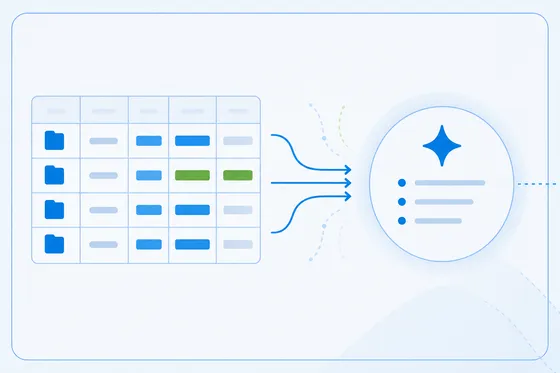
Project managers: budget and status at a glance
“For all running projects, compare the hour budget with booked hours and show the projects above 80 percent consumption.”
The assistant reads projects and timesheets from time cockpit, groups them by project and states the consumption in percent. From there you ask about the status of individual tasks, hours per team member or a draft of the weekly report, without creating a new filter or export.
When a project is to be closed, the assistant proposes the status change and waits for your confirmation.
Controlling: prepare invoicing
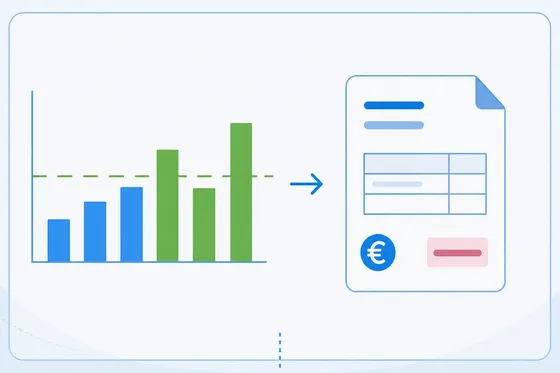
“Which billable timesheets of last month are not yet assigned to an invoice? Group by client and project.”
The same questions return before every month-end close: unbilled work, remaining budget per project and task, revenue per client. The assistant compiles the cases that need clarification; invoice approval stays with you and runs as usual through project invoicing.
Teams and employees: gaps and absences
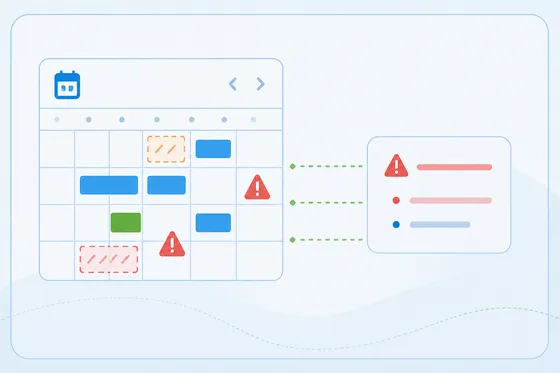
“On which working days of the last two weeks am I missing timesheets? Take approved absences into account.”
Employees find missing days, overlaps and violations of their working time model without searching through lists. Team leads ask about missing entries in the team, open vacation requests or the department’s utilization. The assistant creates a vacation after checking back with you and checks for duplicates first.
All examples with the complete prompts are in the documentation under use cases and prompts.
Connected in three steps
The server runs on our side. On yours, it takes a one-time approval by your Microsoft Entra administrator and the configuration of your AI tool.
1. Create the app registration
An Entra administrator registers an app in your tenant once, adds the redirect URIs of the clients you want to use and grants the mcp.access permission. Afterwards, users only need the client ID. Entra ID guide
2. Connect your AI tool
In the Claude app you add https://mcp.timecockpit.com as a custom connector; in Claude Code, Codex, Cursor or VS Code you add the server to the MCP configuration. For ChatGPT and Microsoft 365 Copilot, a workspace administrator publishes the server once for everyone.
3. Sign in and ask
On the first call you sign in with your Microsoft work account. Then you ask your questions in your own words. The companion skills give the assistant booking patterns, report recipes and TCQL knowledge.
Guides per client
Security and control
AI access must not become a side door around your permissions. This is how the MCP server works:
- Sign-in per user with OAuth 2.1 and PKCE against your Microsoft Entra ID. There is no shared API key.
- Your permissions apply. Every call is checked against the time cockpit permissions of the signed-in user. Internal system tables are invisible to assistants.
- Confirmation before every change. The server describes the intended change; the assistant executes it only after your approval.
- Tighter if you want. A read-only mode hides all writing tools, and the “own data” scope limits access to the user’s own entries.
- Traceable. Every tool call produces an audit event, and result sizes are bounded.
What the assistant reads is sent to the AI provider of the client. Review that provider’s data retention and training policies before rolling out access to your team. Details are in the documentation under access, scope and confirmation.
For administrators and developers
The MCP server builds on the same business functions as the Web API: entities, lists, actions and TCQL queries. Next to the remote server there is a local server in OnCockpit Admin that runs scripts against a data context session and is meant for customization work on the data model.
The companion skills are an open skill bundle with seven skills: setup, time tracking, reporting, TCQL, model discovery, record management, and lists and actions. They are installed with Microsoft APM or through the Claude Code plugin marketplace. Use cases and background are in the post MCP Server for Time Tracking; how we use AI in product development is described in Customizable Standard Software Meets AI.
{
"mcpServers": {
  "timecockpit": {
    "type": "http",
    "url": "https://mcp.timecockpit.com",
    "headers": { "X-tc-tenant-id": "<tenant-id>" },
    "oauth": { "clientId": "<client-id>", "callbackPort": 64485 }
  }
}
}
More Features
Extend and Customize Functions
With time cockpit, we have already done the groundwork for you. Standard tasks such as input validation, user interface layout and styling, and object-relational mapping (ORM) for database interactions are seamlessly integrated. This allows us to focus entirely on customizing the platform to your specific needs, without reinventing the wheel or spending resources on time-consuming basic development.
Customize It Yourself or Let Us Implement It for You
Our platform is designed so that you can either make the customizations yourself or have us implement them for you. Whether you prefer to design it yourself or rely on our expertise, we offer flexible support tailored to your exact requirements.
A Proven Platform
Time cockpit has proven itself as a flexible and customizable solution in a variety of time tracking projects. Thanks to its flexibility, the platform also serves as a powerful foundation for non-time tracking-related projects.
Reduced Programming Effort
Time cockpit enables a significant reduction in programming effort. Developers can declaratively define data structures, validation rules, business logic, and even the user interface – for quick and straightforward customizations.
Over 15 Years of Experience
Benefit from our expertise of over 15 years in time tracking and best practices. Take a look at how we have tailored time cockpit for other customers.
Frequently Asked Questions
What is the time cockpit MCP server?
The MCP server is an interface based on the Model Context Protocol, the open standard for connecting AI assistants to applications. It runs on our side at https://mcp.timecockpit.com; there is nothing to install. Your AI tool connects to it and can read projects, clients, tasks, timesheets and lists from time cockpit and, if you want, create entries. time cockpit itself has no chat of its own: you work in the assistant you already use.
Sources:
Which AI assistants are supported?
Documented and tested are Claude Code, the Claude app and claude.ai, OpenAI Codex, Visual Studio Code in Copilot agent mode, Cursor and ChatGPT in Business, Enterprise and Edu workspaces. Microsoft 365 Copilot connects through Copilot Studio, which needs an administrator. In principle, any client that supports remote MCP servers with OAuth works. The GitHub Copilot CLI is currently not supported.
Sources:
What does the MCP server cost?
Nothing extra. The MCP server is included in every plan, including the free Freelancer year and the trial. The license for the AI tool itself, such as Claude or ChatGPT, is your agreement with that provider.
What are the prerequisites?
Three things: a Microsoft Entra ID work account with access to time cockpit, a one-time app registration in your Entra tenant by an administrator, and an MCP-capable client. The app registration is documented step by step and takes a few minutes; afterwards users only need a client ID.
Sources:
Can the assistant change data in time cockpit?
Only if you confirm it. For every change, such as a new timesheet entry, the server first describes what would happen and executes it only after your approval. If you prefer, connect the client in read-only mode; writing tools are then not even visible.
Sources:
Does the assistant see more than I do in time cockpit?
No. You sign in with your own Microsoft account, and every call is checked against your time cockpit permissions. What you cannot see in the web client, the assistant cannot see either. Access can additionally be limited to your own data, and internal system tables are never visible to assistants.
Where does my data go?
Everything the assistant reads through the MCP server is sent to the AI provider of the client and processed under that provider’s terms. Review your provider’s data retention, chat memory and training policies before you roll out access to your team. time cockpit logs every tool call and bounds result sizes.
Do I still need the Web API?
For system-to-system integrations, yes: Power BI, Excel, ERP or ticketing systems still talk to the Web API with REST, OData and TCQL. The MCP server builds on the same business functions and exposes them in a form AI assistants understand. The two complement each other, and both are included in every plan.
Sources: