Time Tracking in the Graphical Calendar
Boost productivity with a clear, user-friendly calendar that provides a comprehensive view of your schedule.
30 days free · no credit card · cancel any day afterwards
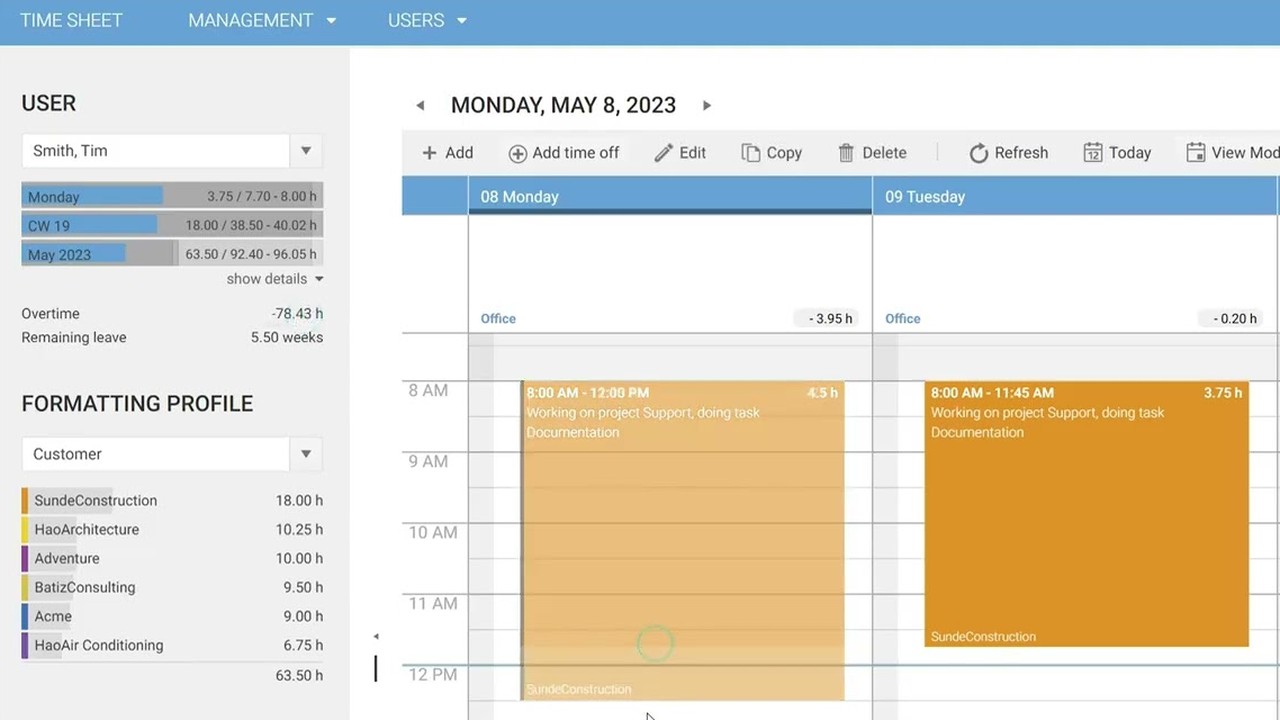
The time tracking calendar is the central screen of time cockpit: time entries are drawn with the mouse or copied by drag and drop, Office 365 appointments, vacations and sick leave appear in the same view. Statistics on planned and actual hours, overtime and remaining vacation are shown right in the calendar.
Calendar Time Tracking with time cockpit at a Glance
- Time entries by drag and drop
- Office 365 appointments
- Booking templates
- Statistics on overtime and remaining vacation
- Price
- €10.85 per user per month
- Trial
- 30 days free, no credit card
- Hosting
- Microsoft Azure, data centers in the EU
- Single sign-on
- Microsoft Entra ID
Visual Time Tracking Made Simple
Your Time Sheet at a Glance: Say Goodbye to Excel!
The graphical calendar is your one-stop shop for time tracking. Switch between day, week or work week view depending on the level of detail you need. Get an overview of your absences like vacations or sick leave, and show your Outlook appointments to see how you planned your day. Time tracking is a necessity, not your primary job! So we made the creation of time sheet entries as simple as possible. Use drag and drop to quickly change the duration of a time sheet entry, to move it or to copy it to another day. Every entry sits on a client, project and task and flows straight into your project time tracking.
Time Tracking with Your Outlook Calendar
When you sign in with Office 365, time cockpit shows your Outlook appointments and sent emails right in the time tracking calendar. If you plan your work in Outlook, a double click turns an appointment into a time sheet entry. Sent emails show when you worked for which clients or projects and help you fill in missing entries.
sidekick, the optional automatic time tracking on PC and Mac, adds even more clues: it records on Windows and macOS which applications and files you used and shows them in the calendar as well.
Colorize Your Time Sheet with Formatting Profiles
Formatting profiles color your time sheet entries by the criteria you choose and give you a quick overview of how you have spent your working time. See at a glance when you have worked remotely, for which client or project, or how much revenue you have generated for project invoicing in a period of time.
Share Time Sheet Entries
Share your time entries directly from the calendar with colleagues – quickly, easily, and without hassle. Individual time entries can be shared with just a few clicks and are immediately available to other team members as a booking suggestion. This facilitates collaboration on shared projects and ensures transparent, consistent time data.
Example: A joint meeting runs longer than planned. One person records the actual duration and shares the time entry with the colleagues involved. They receive a notification and can accept the suggestion with one click or adjust it as needed.
Sharing time entries saves time, reduces coordination effort, and ensures that shared work is documented consistently and accurately – ideal for project work, meetings, or coordinated team activities.
Working Time Statistics: Overtime and Remaining Vacation in the Calendar
Be ahead of things and get a visual indication of your planned and actual working hours per day, week, and month. Enter planned hours of work, holidays, vacations, and sick leave, and time cockpit shows you how you are doing compared to your planned working time. Working time models, overtime allowances and working time limits are set up in employee time tracking.
Track Recurring Tasks Efficiently with Templates
Track recurring tasks such as mailing and admin tasks efficiently with time sheet templates. Create your own time sheet templates from existing time sheet entries and reuse them by simply dragging and dropping them into the time tracking calendar. Plus, you can create dynamic time sheet templates and integrate external systems like Zendesk or Freshdesk directly into the time sheet calendar (see the Freshdesk integration from a customer project).
Frequently Asked Questions
Can I use Outlook appointments for time tracking?
Yes. When you sign in with Office 365, the time tracking calendar shows your Outlook appointments and sent emails. A double click turns an appointment into a time sheet entry.
- Outlook appointments in the documentation docs.timecockpit.com
How do I record time in the calendar?
You draw a time sheet entry with the mouse and assign it to a client, project and task. By drag and drop you change the duration, move an entry or copy it to another day.
What are time sheet templates?
Time sheet templates are presets for recurring tasks such as mailing or administration. You create them from existing time sheet entries and drag them into the calendar when needed.
- Time sheet templates in the documentation docs.timecockpit.com
Can I see my overtime and remaining vacation in the calendar?
Yes. The sidebar shows planned and actual hours per day, week and month, plus overtime and remaining vacation. They are based on the working time model and the absences from employee time tracking.
Does the time tracking calendar work in the browser and on a Mac?
Yes. time cockpit runs in the browser on PC, Mac, Android and iOS. The optional automatic time tracking with sidekick, which records activities at your computer, is also available for Windows and macOS.
Can I color-code time sheet entries in the calendar?
Yes, with formatting profiles. You color entries by client or project, for example, or highlight home office days, and see at a glance how your time is distributed.
- Formatting profiles in the documentation docs.timecockpit.com
Does time cockpit fit your process, from time tracking to invoicing?
In 30 minutes you will know whether time cockpit covers your project hours, project controlling and invoicing.


- What we cover
- You tell us how you track and bill time today. We show you live how that works in time cockpit and what switching involves.
- Who you talk to
- Someone from the team that builds time cockpit and rolls it out for customers, for example Alexander or Michael.
- How
- 30 minutes online via Microsoft Teams, free and without obligation.
You pick a free slot in Microsoft Bookings (opens in a new tab) and receive the confirmation with the Teams link by email. Prefer to write? support@timecockpit.com